What are toolkits?
Toolkits are groups of apps that work together for specific tasks.
Instead of giving Nexus access to all your apps at once, which can cause confusion and context overload for AI assistants, toolkits let you create focused sets of apps for particular workflows.
Why use toolkits?
When AI has access to too many apps, it can struggle to choose the right ones. Toolkits keep things simple by limiting access to only the apps needed for the task.
Create a toolkit
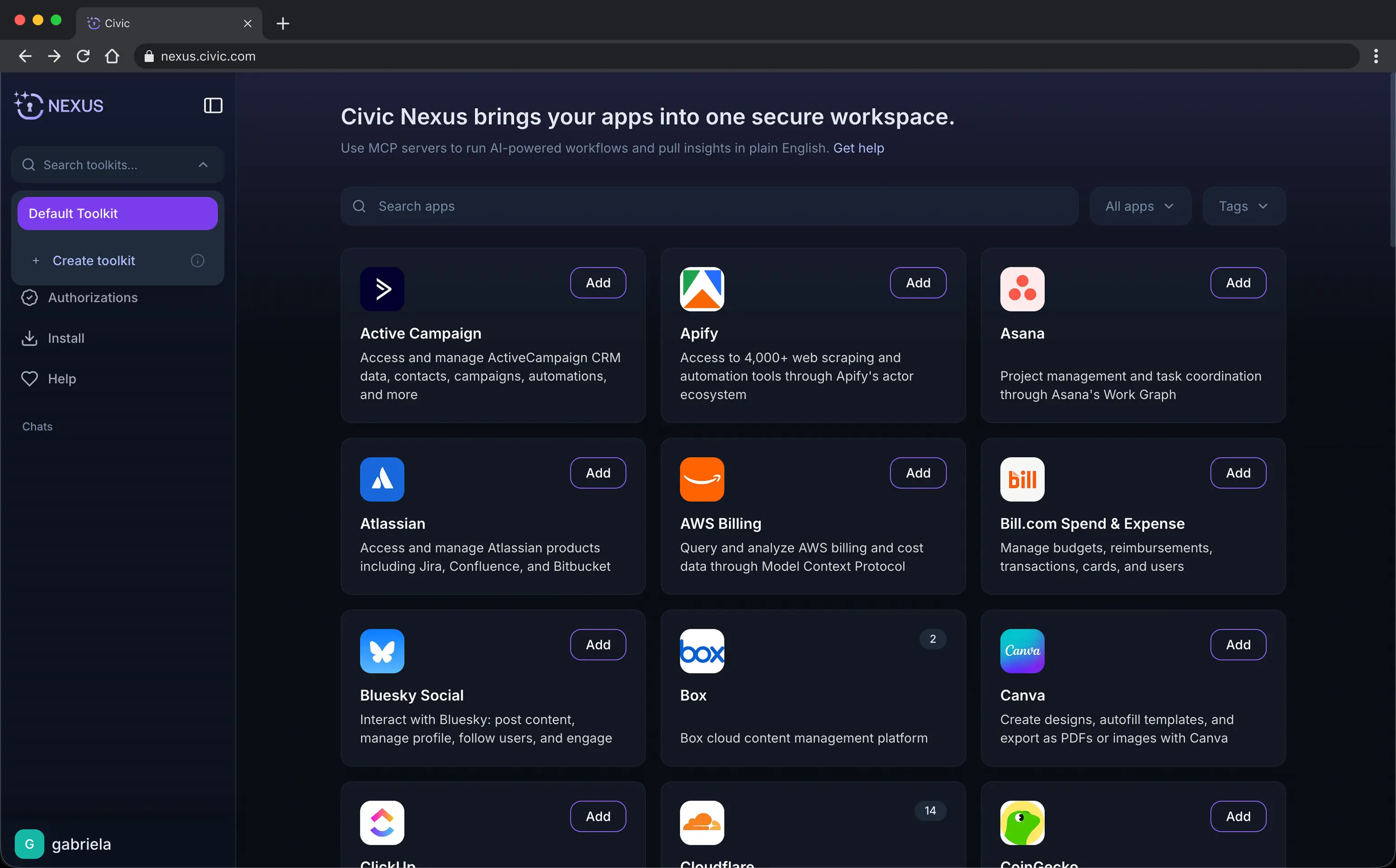
1. Click on Default Toolkit at the top left corner of your screen and select +Create toolkit in the dropdown.
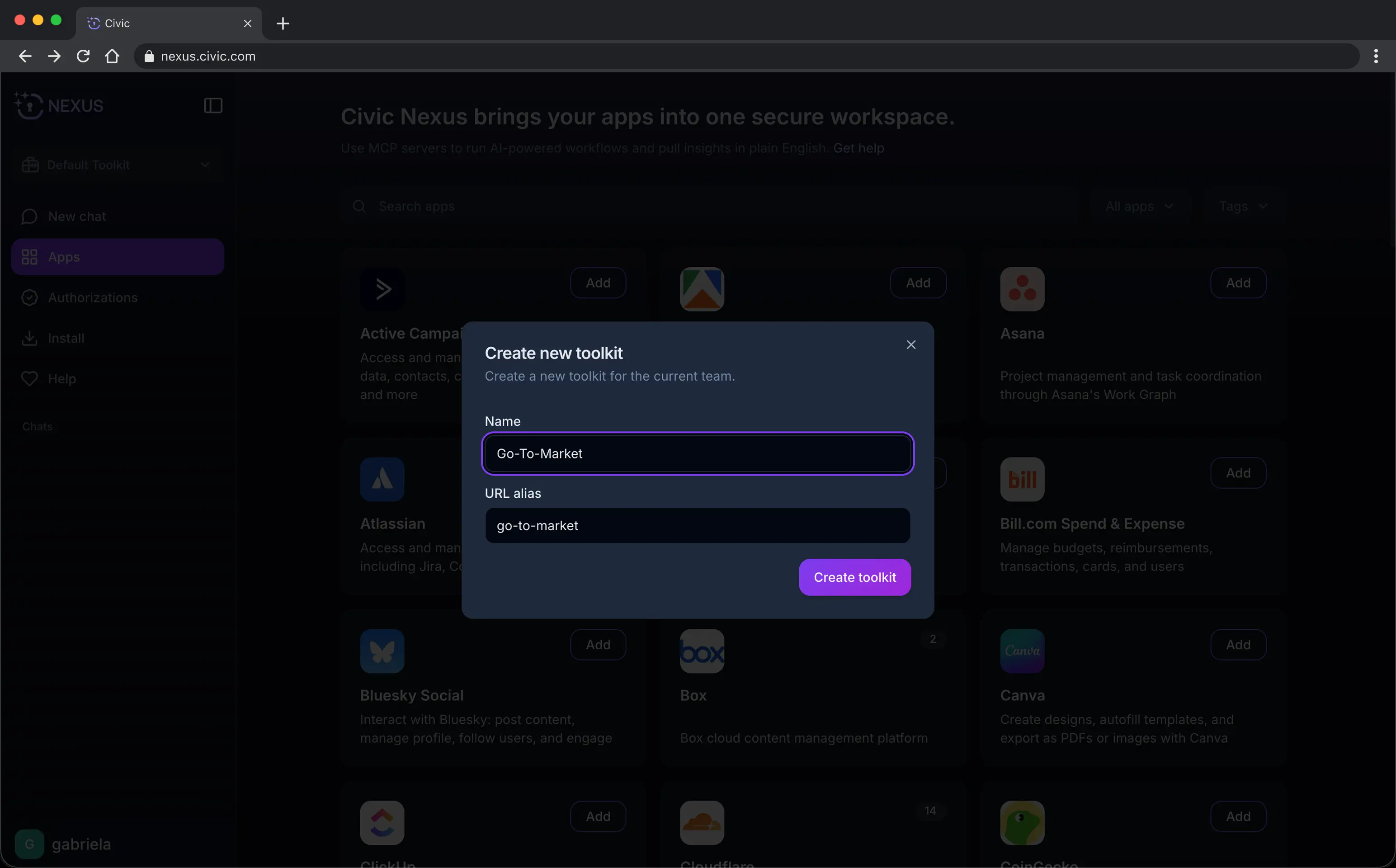
2. Give your toolkit a descriptive name. This helps you and your team understand what it's designed for.
Change the apps in your toolkit
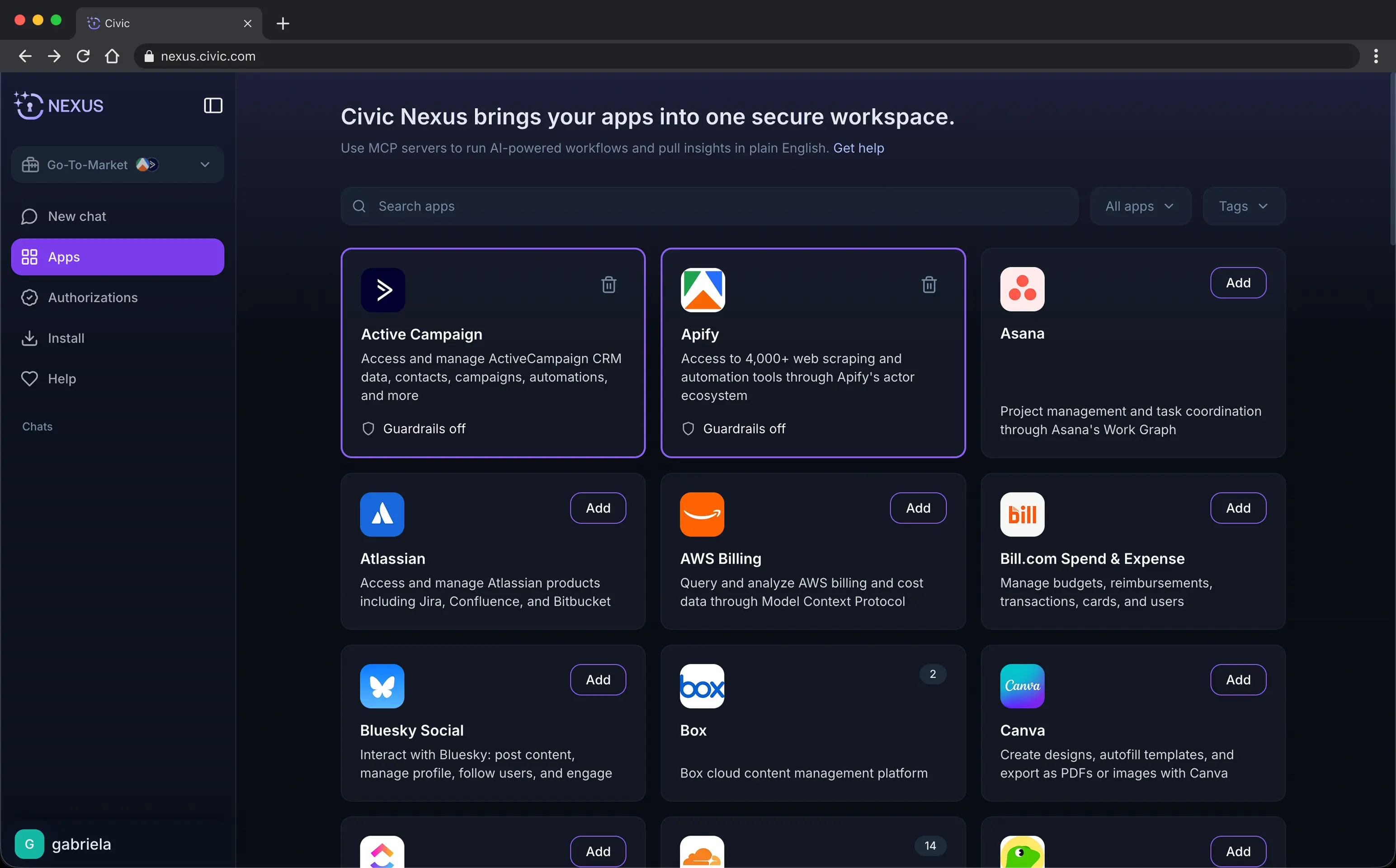
Go to your desired Toolkit from the dropdown menu. You’ll be taken directly to the Apps page, where you can see all the apps currently selected for that toolkit.
To remove an app, hover over it and click the trash can icon. You can add or remove apps at any time.
Switch between toolkits
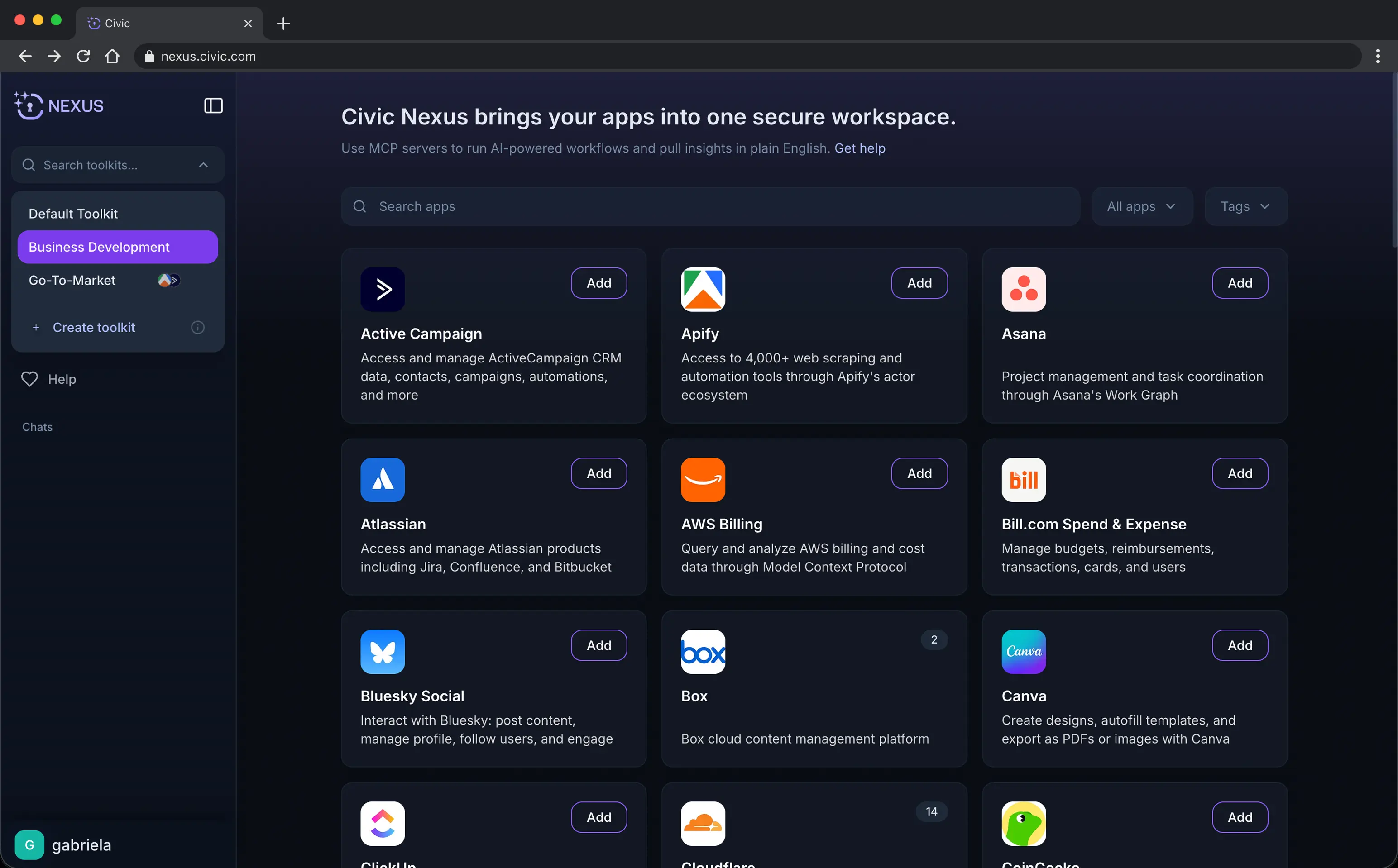
If you have multiple toolkits, use the dropdown at the top left corner of the Nexus interface to switch between them.
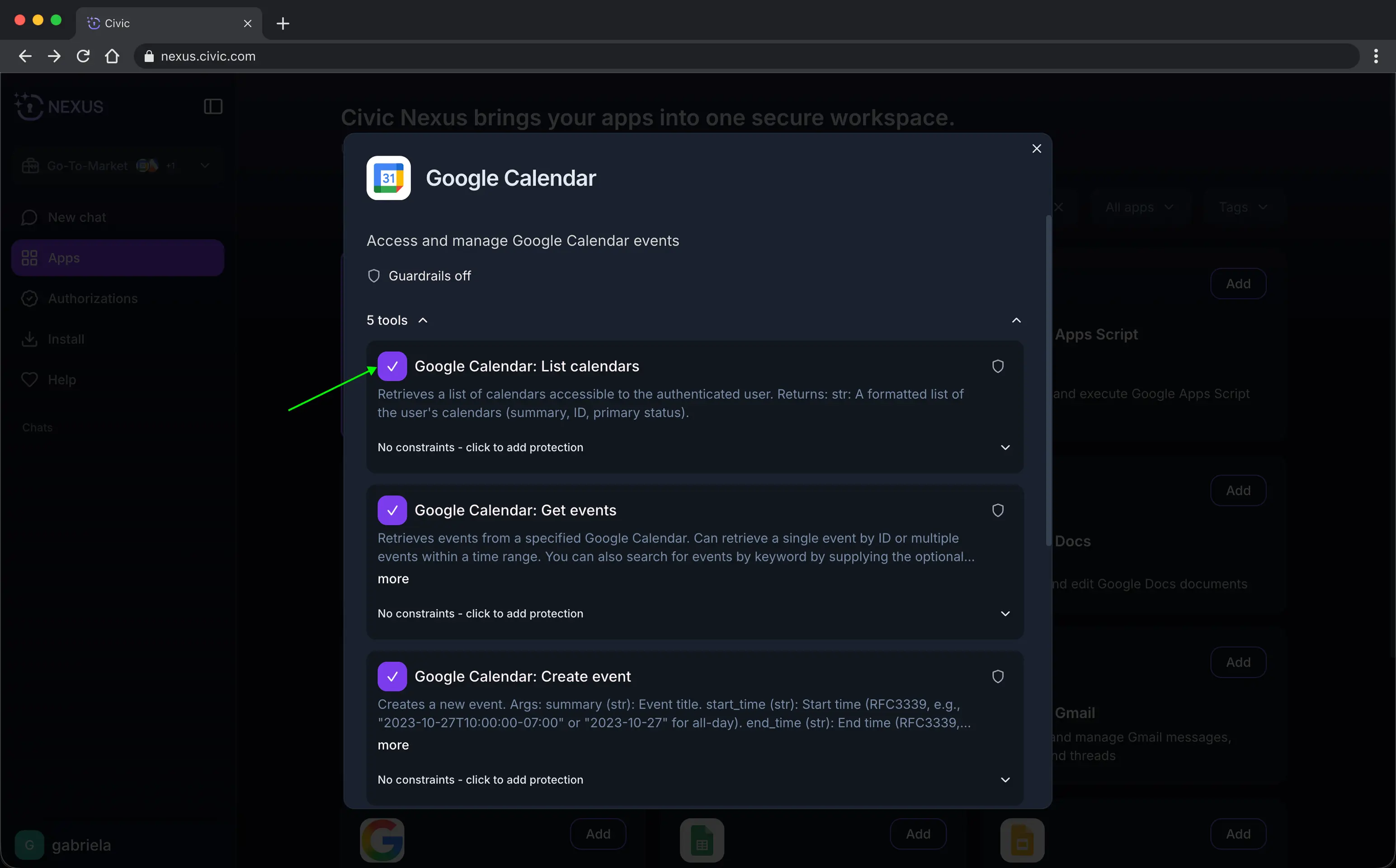
Manage app access
You have full control over what actions an app can and cannot do. You can revoke app access instantly via a toggle by clicking on the app in the directory.
Nexus can only use the apps you make available to it, and it cannot override any parameters you’ve preconfigured.
Tip: If you need more detailed or specific guardrails, ask the LLM to list the guardrails it currently supports.
Add custom toolkit parameters
You can teach Nexus to use tools the way you prefer.
If a tool, or set of tools, includes a parameter that should always be set to a specific value, you can prompt Nexus to preset it. Nexus will then automatically apply that preset every time it uses those tools. For example: